Knowledge bases
Every .md (or .mdx) file in the repository becomes a page; folders become
sidebar sections; README.md becomes the front page, and a README.md
inside a folder becomes that section’s page. No front matter is needed — the
page title is taken from the first # Heading. Write the way you already
write in GitLab.
This page takes the template apart: its three files, and what they become on template-docs.pages.gitt.one.
The files and the sidebar
Section titled “The files and the sidebar”README.md → / "My Knowledge Base"Guide/Getting started.md → /guide/getting-started section "Guide"Guide/FAQ.md → /guide/faq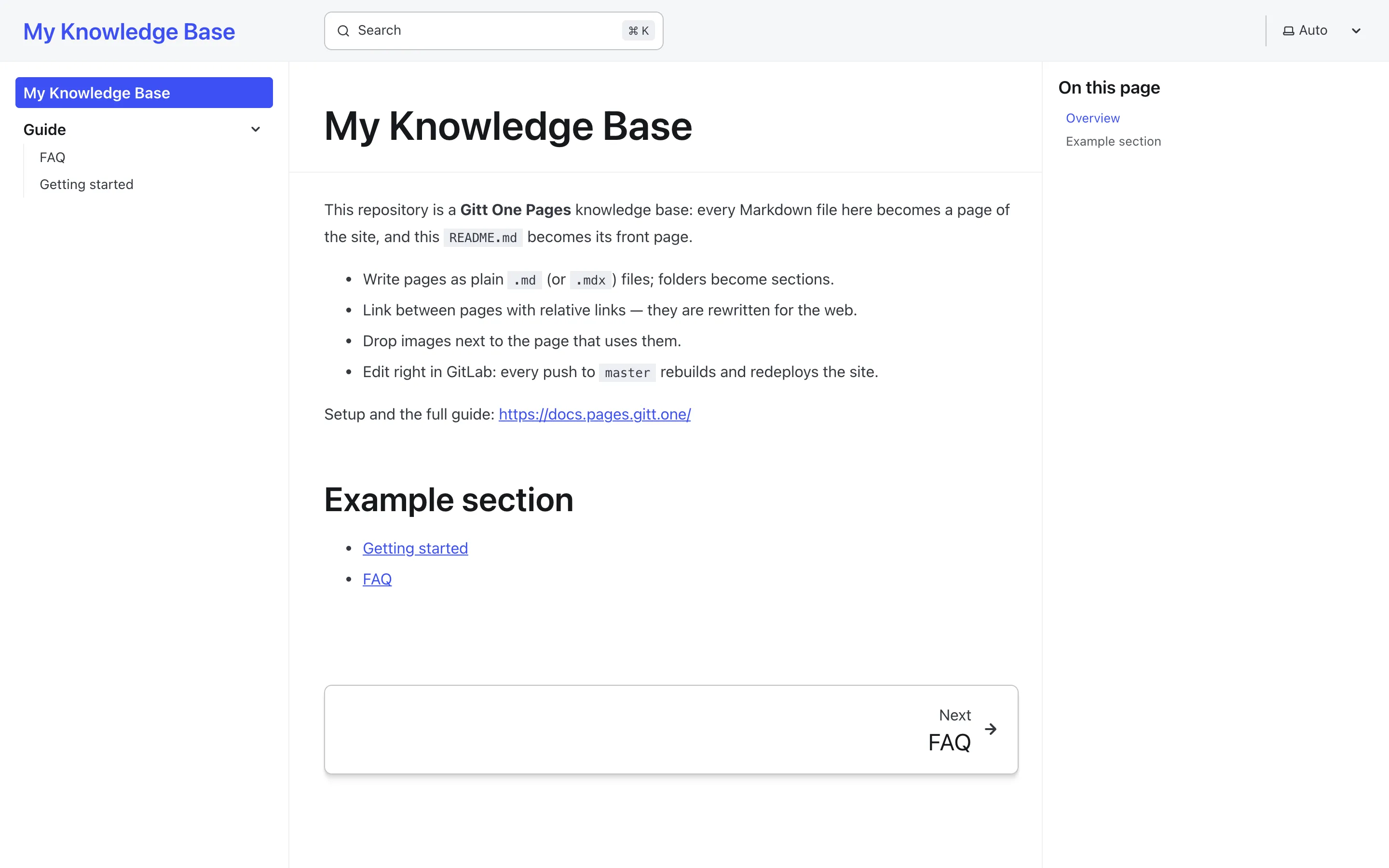
The sidebar on the left is the folder tree; the section label is the folder name, the page label is the first heading. Page addresses are slugs of the file path — spaces become dashes, case is lost.
README.md — the front page
Section titled “README.md — the front page”# My Knowledge Base
This repository is a **Gitt One Pages** knowledge base: every Markdown filehere becomes a page of the site, and this `README.md` becomes its front page.
- Write pages as plain `.md` (or `.mdx`) files; folders become sections.- Link between pages with relative links — they are rewritten for the web.- Drop images next to the page that uses them.- Edit right in GitLab: every push to `master` rebuilds and redeploys the site.
## Example section
- [Getting started](Guide/Getting%20started.md)- [FAQ](Guide/FAQ.md)The two links are ordinary relative links to files, the way GitLab wants
them; on the site they become /guide/getting-started and /guide/faq.
Guide/Getting started.md — a page with a table, a task list and a diagram
Section titled “Guide/Getting started.md — a page with a table, a task list and a diagram”# Getting started
Replace this text with your own. Everything GitLab renders is rendered here thesame way — tables, task lists, footnotes, code blocks and Mermaid diagrams.
| Step | What to do ||---|---|| 1 | Rename the site in `pages.config.js` || 2 | Replace `README.md` with your front page || 3 | Add folders and `.md` files |
- [x] Site created from the template- [ ] Content written
```mermaidgraph LR A[content repo] --> B[builder image] --> C[nginx image] --> D[your domain]```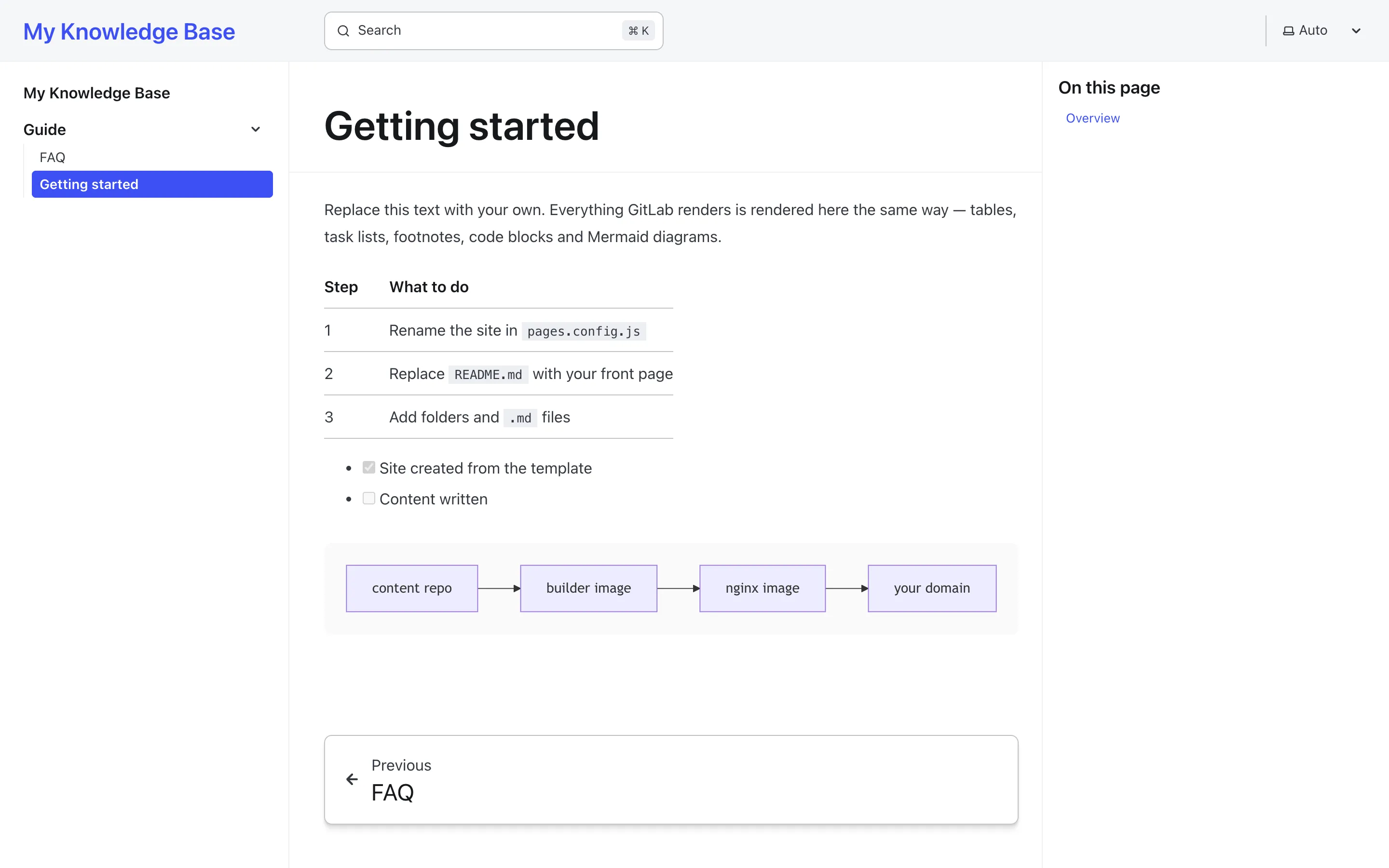
Open the file in GitLab and on the site: the table, the checkboxes and the diagram look the same. What is identical and what is not is listed in Markdown and GitLab.
Front matter, when you want it
Section titled “Front matter, when you want it”None is needed. If you add some, Starlight’s keys apply: title,
description, template: splash (full width, no sidebar — for a one-page
site with wide tables), sidebar.order, sidebar.label. Pick either a
front-matter title or a # H1, not both: GitLab shows front matter as a
yaml block.
sidebar.order is the one you will want first: without it the sidebar is
alphabetical, folders and pages together, and a folder sorts by its lightest
page. This site orders its sections that way — the front page has
order: 0, the first page of each section 1, 2, 3, the standalone
pages after.
Growing the site
Section titled “Growing the site”- A new section is a new folder; a new page is a new file. Nothing to register.
- Images go next to the page and are linked relatively; downloadable files
go under
assets/— Images and files. - A second language is a mirror folder named by the code — Languages.
- Search comes on its own; a password is one CI variable — Search, Password protection.